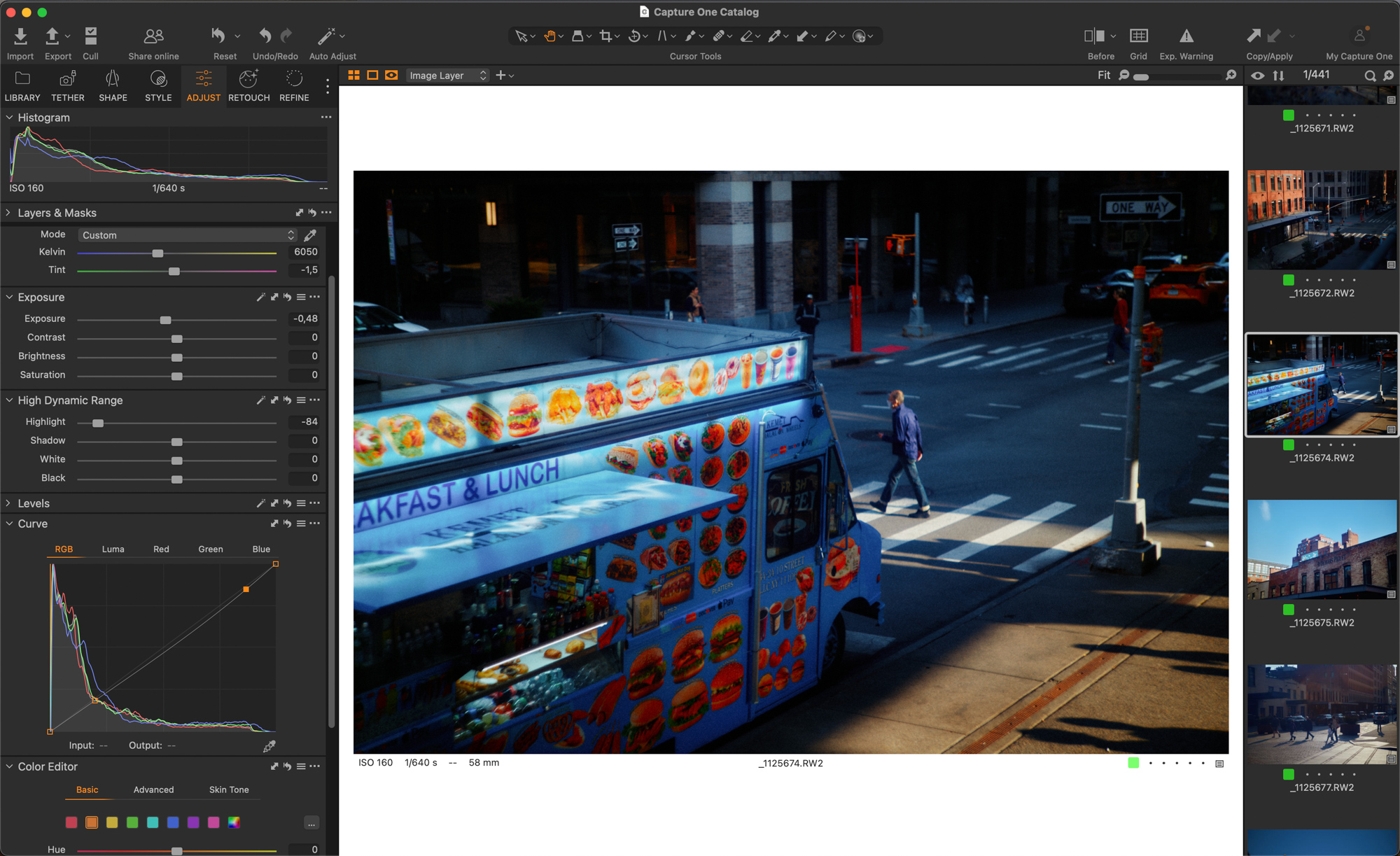
Best Photo Editing Software in 2026
Published 5 October 2026 by MPB
The best photo editor for you depends on your skill level, budget and the type of editing you want to do. For beginners, Lightroom Cloud and Luminar Neo are accessible options. For a more advanced workflow, Lightroom Classic, DxO PhotoLab, Photoshop or Capture One offer more control. If you're looking for a free option, check out GIMP, Darktable and Affinity.
In this guide, we compare the best photo editing software for 2026, including RAW editors, Photoshop alternatives, free options and AI tools. If you're just starting, you can also check out our beginner's guide to photo editing before choosing a specific programme.
What is a photo editor and why do you need one?
A photo editor is an indispensable digital tool that lets you enhance image quality, make corrections and transform your photographs.
Whether you want to make simple adjustments, such as cropping or correcting brightness and contrast, or more advanced tweaks like professional-level image processing, precise colour editing or RAW file development, a good editor provides all the necessary functions.
Editing your photos doesn't mean completely altering them, but optimising them and unlocking their full potential.
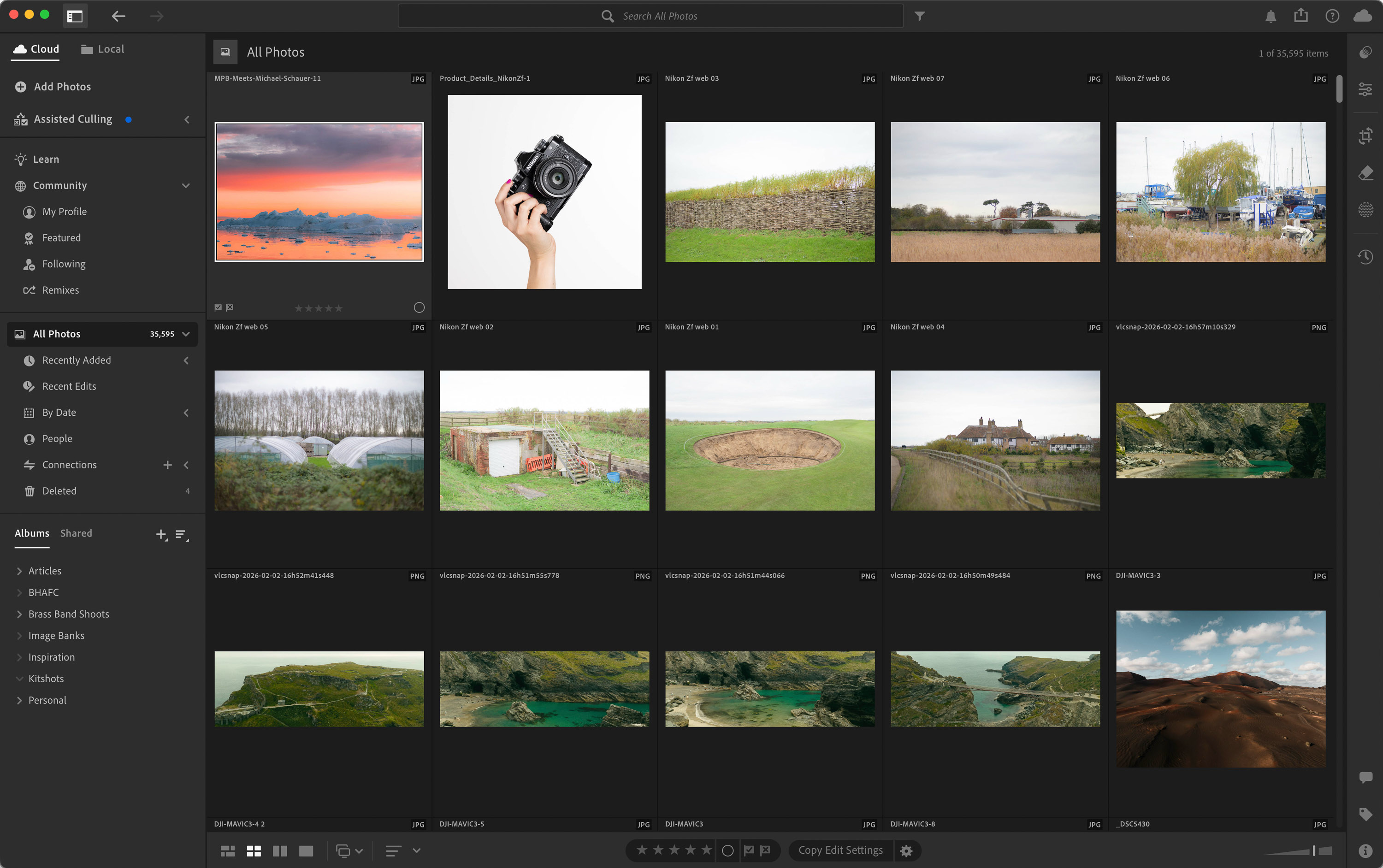
Lightroom Cloud´s Catalogue
Photo editing basics
Before choosing a programme, it's good to be clear on concepts that often appear in photo editing. You don't need to master them all immediately, but you should understand what they mean to grasp the kind of tools you'll need.
JPEG: a common, compressed image file format. It's ideal for sharing photos, uploading them online or saving space, but offers less editing flexibility than a RAW file because the camera has already processed and compressed the image.
RAW: an image file format that retains more information than a JPEG. It gives you more scope to correct light, colour and detail. If you want to understand more about the differences between RAW, JPEG and other file types, check out our guide to image file formats.
Non-destructive editing: a way of editing an image without permanently altering the original file. Adjustments are saved separately, so you can change them, disable them or revert them later.
Layers: editing levels placed one on top of another. Use them to make adjustments or add text, graphic elements or parts of a composition without directly affecting the rest of the image.
Masks: features that help you decide where photo adjustments are applied and where they aren't. For example, you can edit only the sky or soften only the skin.
Tethering: shooting with your camera connected to another device, such as your computer or tablet, to instantly view photos on a larger screen.
Nodes: a system of connected editing blocks. Each node can make a different adjustment, such as colour, contrast or a mask. It's common in programmes like DaVinci Resolve.
Batch editing: When you batch edit, you apply the same settings to a group of photos at once.
Cropping: a tool in photo editing software that allows you to adjust the size of an image to adapt its composition or remove elements from the margins. Cropping can also help you improve an image's framing. If you want to delve deeper into this topic before editing, you can check out our beginner's guide to photographic composition.
Curves: a photo editing software tool that offers more precise control over brightness, contrast and colour tones.
White balance: corrects colour temperature so whites appear neutral.
Exposure: brightens or darkens the image.
Highlights and shadows: recover detail in the image's light and dark areas.
Contrast: controls the difference between light and dark tones.
HSL/Colour Mixer: adjusts individual colours, useful for skin, skies, foliage and product treatment.
Sharpness: increases the sense of detail, especially after resizing images or processing RAW files.
Noise Reduction: Reduces digital grain or noise in images taken in low light or at high ISO.
Best software for beginners to edit photos
The best photo editor for beginners doesn't have to be the most comprehensive, but the one that helps you learn without overwhelming you. If you want to start editing photos without using overly technical tools straight away, it's best to choose intuitive, visual and easy-to-learn software. In this category, we've selected editors that allow you to adjust basic lighting, colour, cropping and details with a manageable learning curve, while also giving you room to grow when you want to work with RAW files or try more advanced features.
Lightroom Cloud
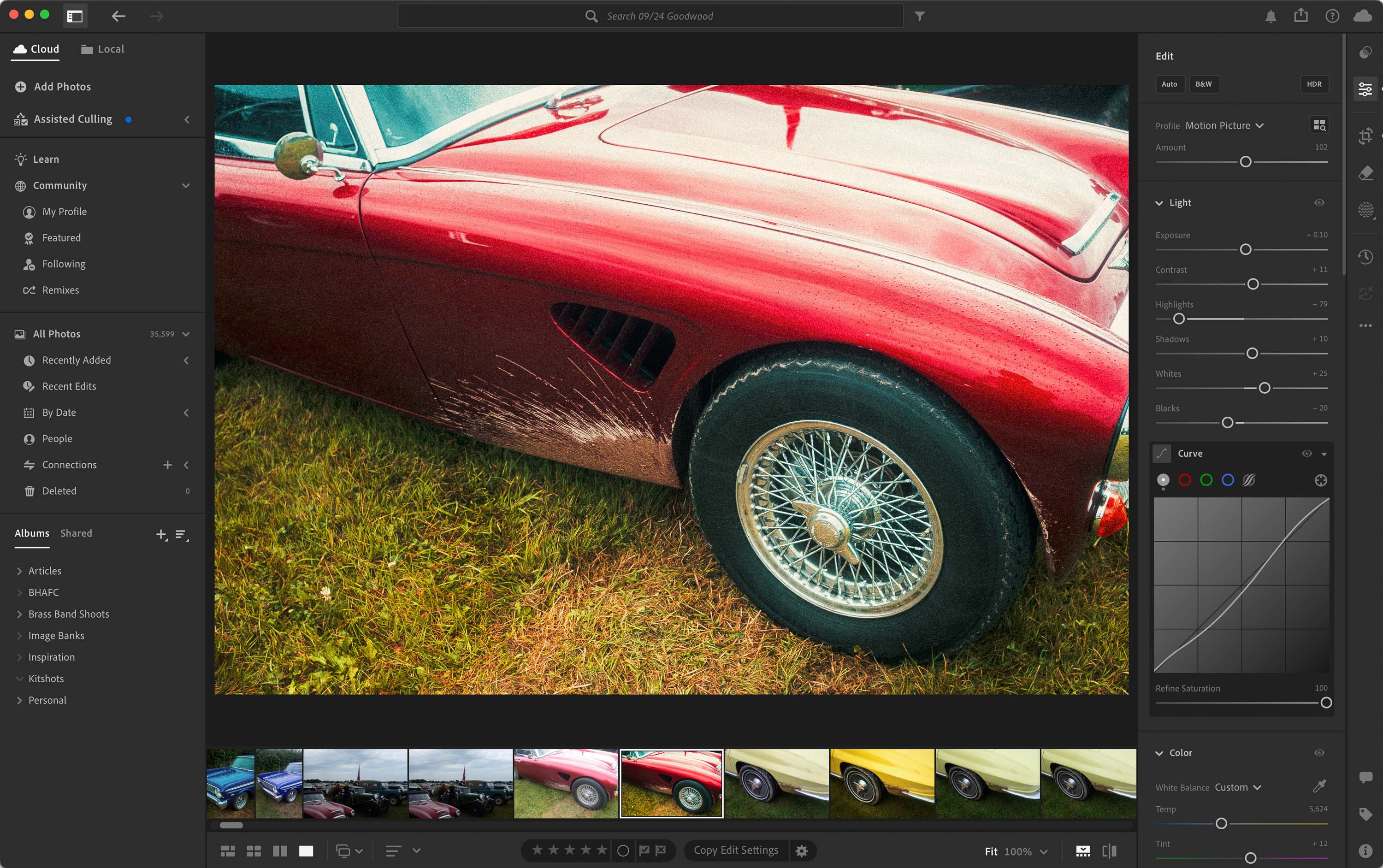
Lightroom Cloud
If you want to learn how to edit photos gradually, Lightroom Cloud is one of the most accessible options. Don't confuse it with its older sibling, Lightroom Classic, as this version is much more user-friendly and works well across desktop, mobile and web thanks to cloud storage.
We recommend it if you're starting from scratch because the programme helps you learn the basics of photo editing, such as adjusting light, colour or cropping, without having to endure a huge learning curve.
What's more, Lightroom Cloud is also a good starting point if you want to get familiar with RAW editing and level up to more advanced programmes, should you need to.
Pros:
Intuitive and easy to use for beginners
Works on desktop, mobile and web
You can sync files to the cloud and access them from multiple devices
A good entry point for learning RAW editing without overcomplicating things
It includes AI-assisted organisation and editing tools, but it's not the editor that stands out most for its generative features. Adobe includes it in its subscription photography plans, along with Lightroom, cloud storage and generative credits, depending on the plan.
Cons:
It works on a subscription model, so you can't buy it with a one-off payment
Relies on cloud storage and subscription
It might fall short if you want a more advanced local workflow
It doesn't offer the same control over large catalogues and libraries as Lightroom Classic
Luminar Neo
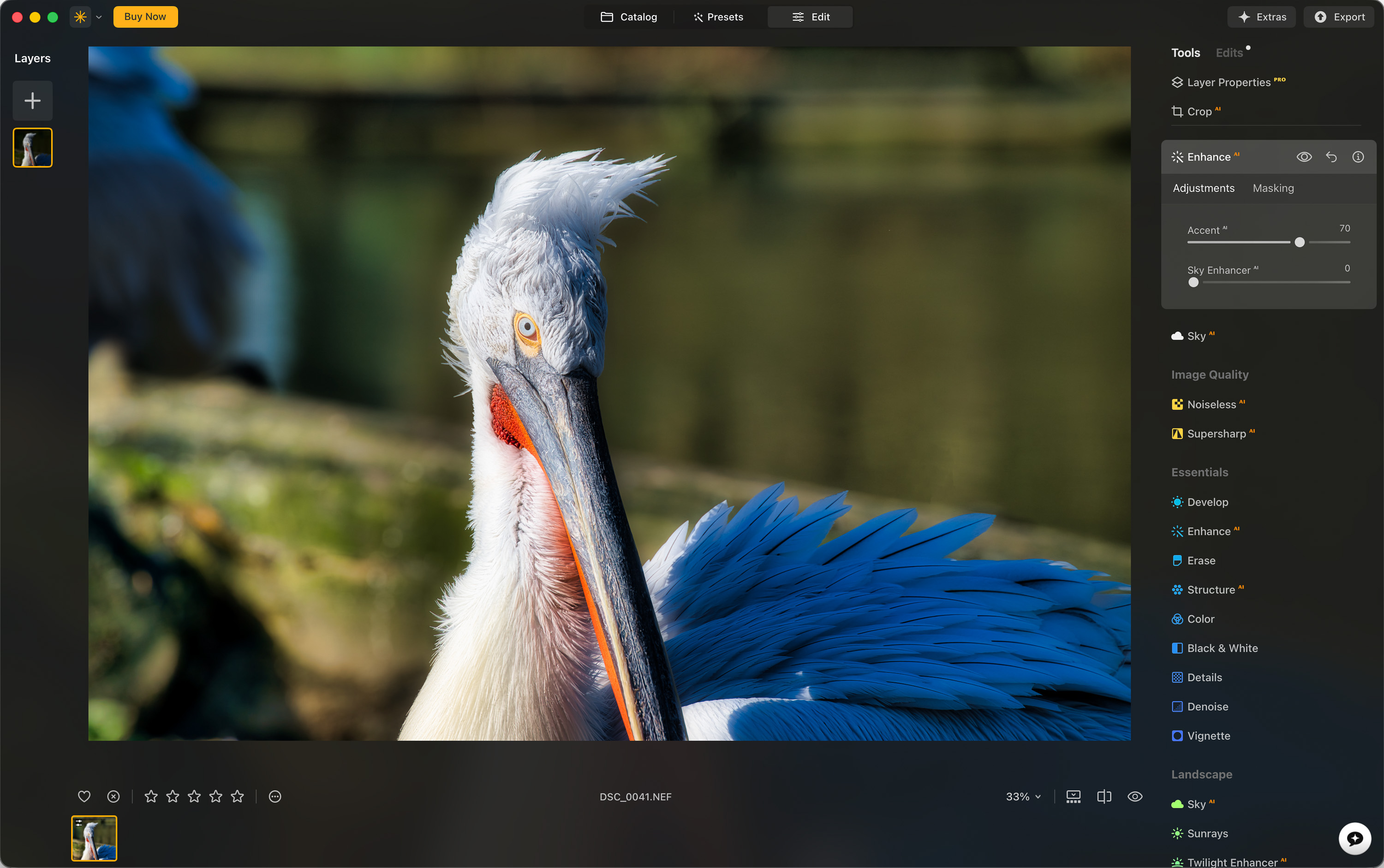
Luminar Neo
Luminar Neo is a good option if you want quick results and to incorporate more AI into your photo editing. It's an editor that simplifies tasks that might take longer in other programmes, thanks to AI assistance, such as changing skies or removing elements from an image.
As you can imagine, it's not the most recommended tool if you're a purist who wants greater control over your image editing. But if you're just starting out and want a less intimidating way to take your first steps into editing, Luminar Neo could be an option for you.
Pros:
Simple, accessible interface with a shallow learning curve
Its AI tools help achieve quick results: Sky AI, Enhance AI, portrait tools, object removal and generative features like GenErase, GenSwap and GenExpand
It can be purchased with a one-off payment for its perpetual licences, although there are also plans and services for features and updates
It works as a standalone application and also as a plugin for Lightroom Classic, Photoshop and macOS Photos
Cons:
It's not the best option if you're looking for highly technical RAW development
While it offers one-off payment licences, some major updates or continued access to generative tools may require additional payments
It may fall short if you want precise, manual control over image editing
Best software for intermediate photographers
If you frequently edit photos, you'll need tools that go beyond basic adjustments. This category includes software with more control over RAW development, library organisation, batch editing and final image quality. These options are designed for those who want a more organised, precise and flexible workflow.
Lightroom Classic
Lightroom Classic is a solid option for photographers who edit frequently and need to organise many images efficiently. Unlike Lightroom Cloud, it's better suited to working with files stored on your computer or on external hard drives.
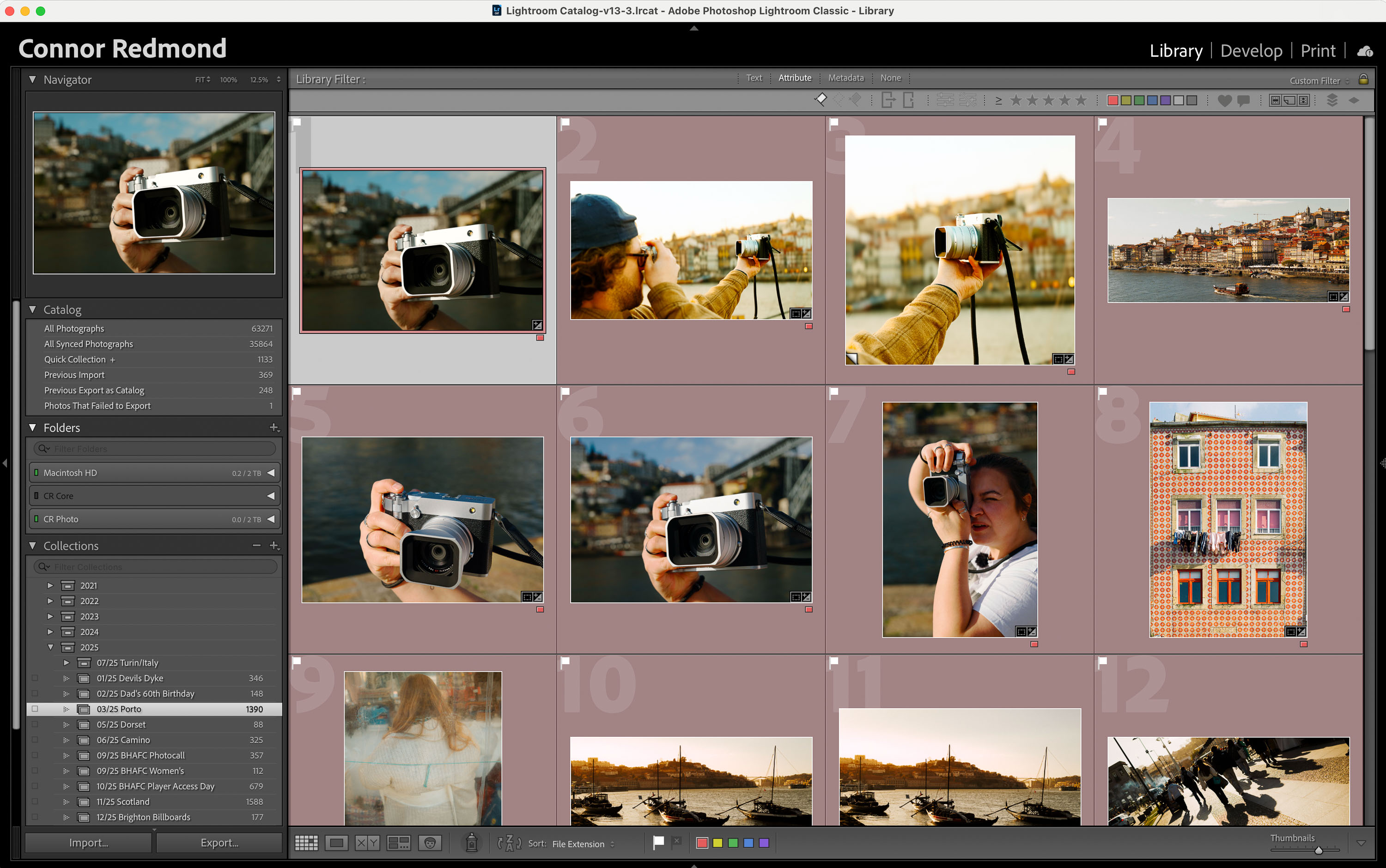
Lightroom Classic Catalogue
Its main advantage lies in the catalogue system, which allows you to import, select, rate, tag and organise photos with keywords and metadata. It also enables non-destructive RAW file editing, preset usage, batch processing and seamless integration with Photoshop.
It's especially useful for event, product, travel or content photographers who need to maintain an organised and consistent workflow.
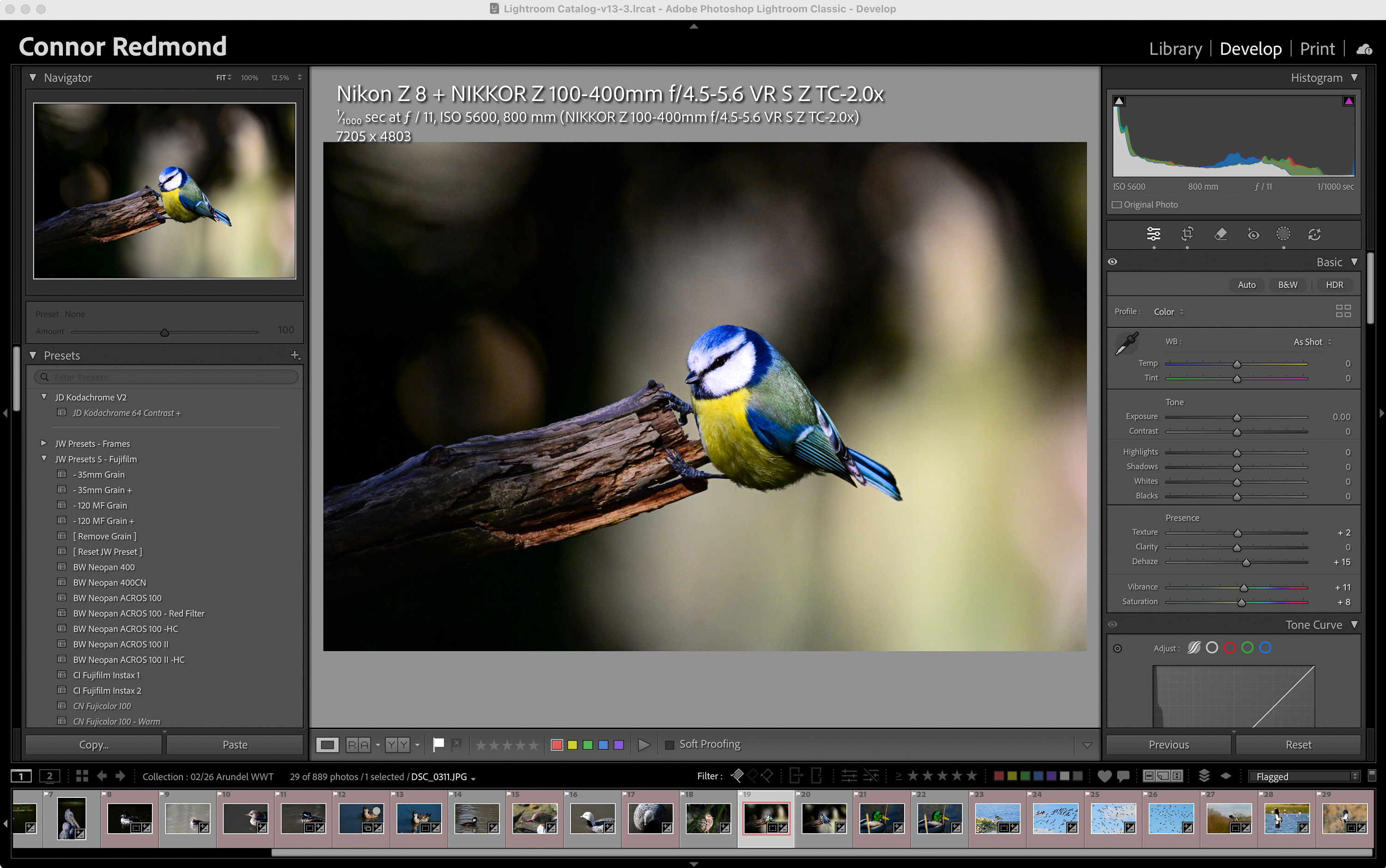
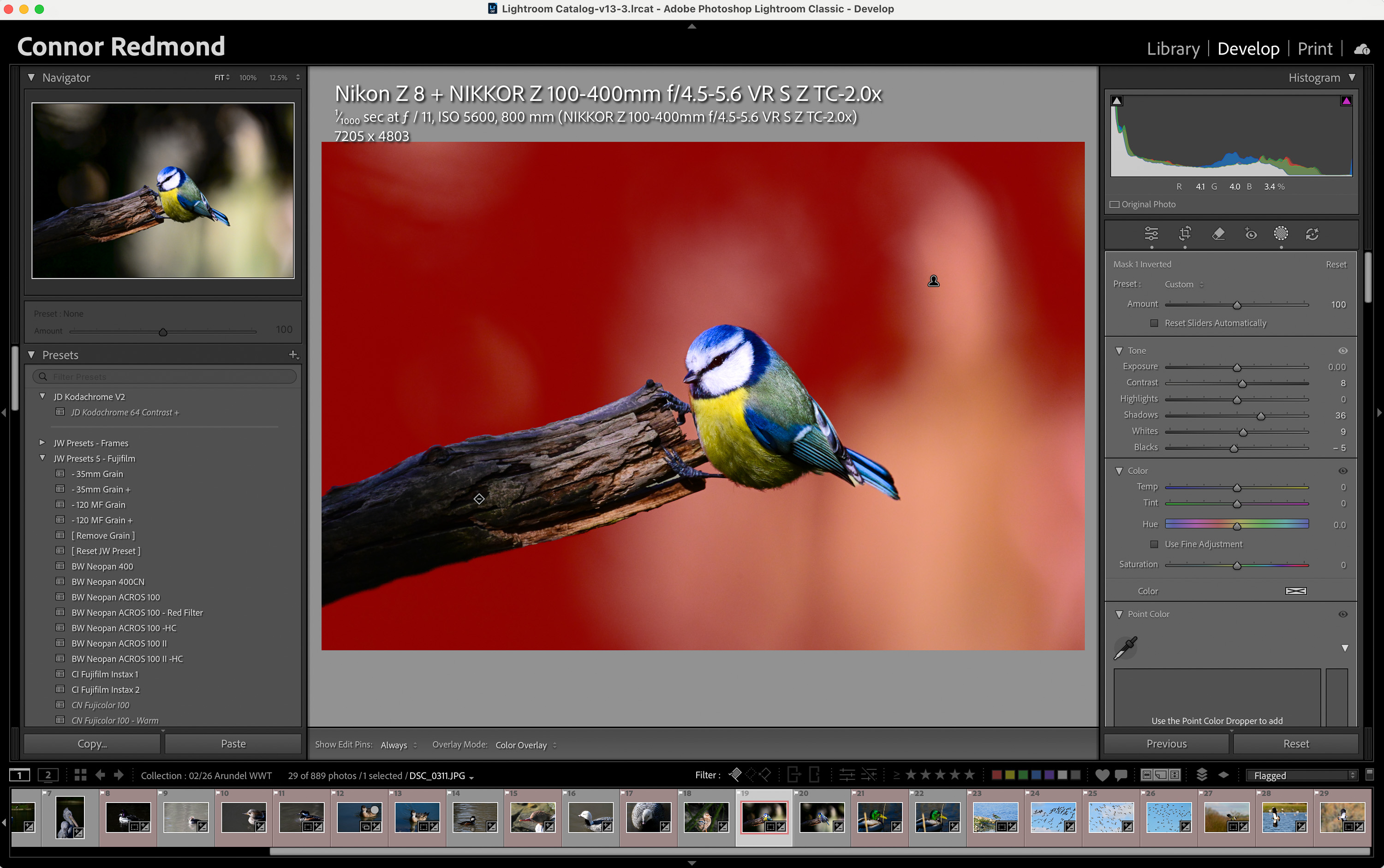
Left: Selecting the background using the Mask tool in Lightroom Classic Right: Applying an effect to the background without affecting the foreground image
Pros:
Very powerful for organising large libraries using catalogues, collections, metadata, keywords, ratings and flags
It allows for non-destructive RAW editing, batch editing and the use of free or paid presets
It includes masks, selective adjustments and colour tools to refine the final look of your image
It integrates seamlessly with Photoshop within the Adobe ecosystem
It includes AI-assisted features, useful for tasks like removing unwanted objects, although its main strength lies in its photographic workflow
Cons:
Its catalogue system can be confusing at first
It's more demanding than Lightroom Cloud
It's not the easiest option if you're still unsure how to organise folders, hard drives and backups
It's a subscription model, and its recurring payment is one of the biggest drawbacks for many users
DxO PhotoLab
DxO PhotoLab isn't one of the most well-known editors, but it stands out for the image quality it delivers, especially thanks to its optical corrections, noise reduction and RAW processing.
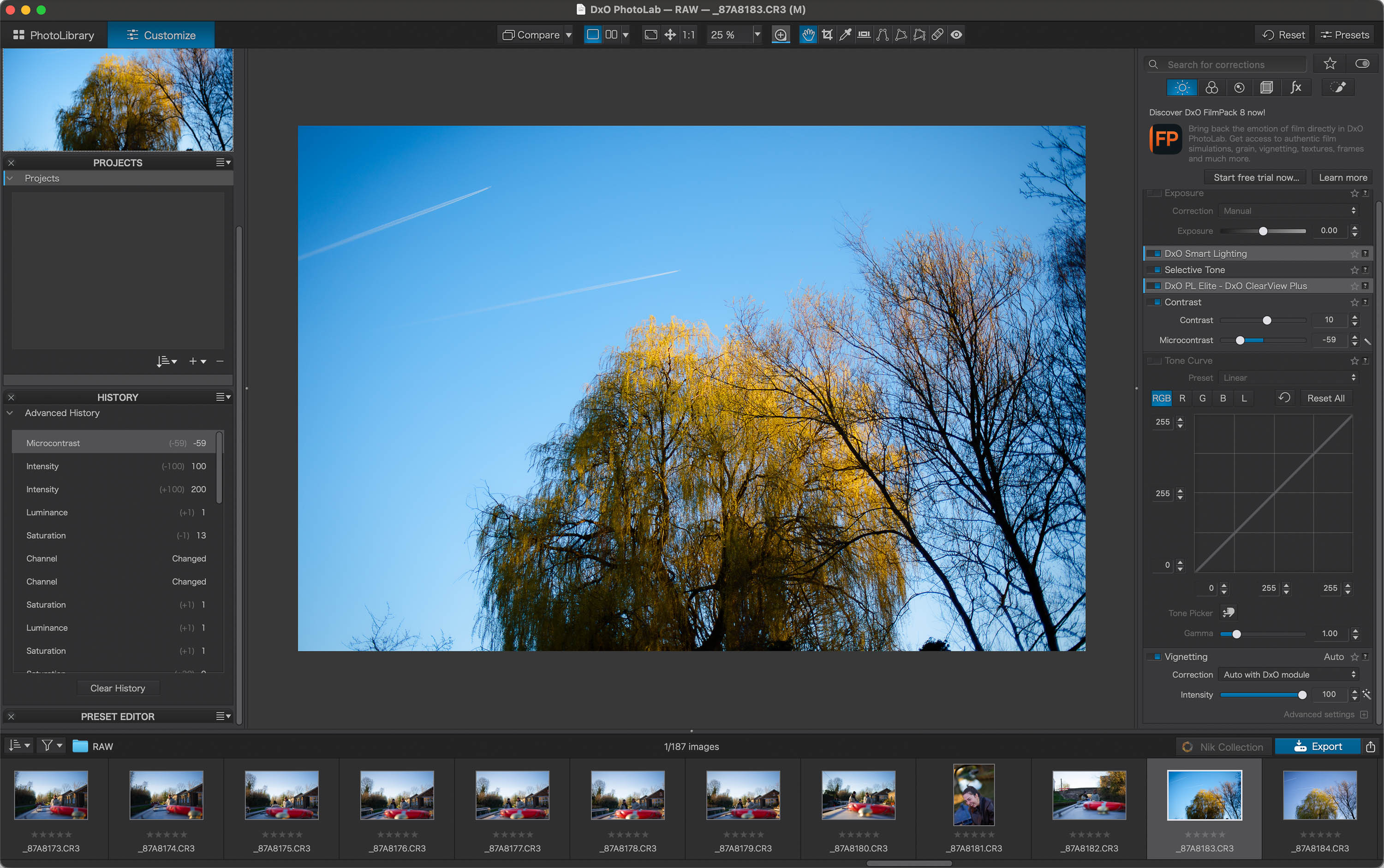
DxO PhotoLab
It's a very interesting tool for photographers working with high-resolution cameras, demanding sensors or images taken in low-light conditions. If your priority is to squeeze the technical quality out of your files, DxO PhotoLab can be a very powerful alternative.
Something to bear in mind is that it doesn't offer an organisation system as comprehensive or flexible as Lightroom Classic, so it might not be the best option if you need to manage huge libraries or a highly connected workflow across devices.
Pros:
It stands out for its RAW processing quality, optical corrections and noise reduction
It's particularly useful for high-resolution cameras, demanding sensors and low-light photography
It works with a single-payment licence per version, so it doesn't rely on a monthly subscription to use the programme
Cons:
The initial price can be high
Major updates usually require payment, so 'one-off payment' doesn't mean 'free major updates forever'
It doesn't offer the same comprehensive or flexible organisation as Lightroom Classic
Its AI tools particularly excel in technical image quality, especially noise and RAW processing, rather than creative generative editing like Photoshop or Luminar Neo
Best editing programs for professionals
If you're looking for a professional photo editor, this is where you'll find the most comprehensive tools for advanced retouching, commercial photography, studio sessions, colour control, batch editing, and hybrid photo and video workflows. They aren't the easiest options to start with, but they are the most suitable when you need precision, efficiency and high-level results.
Photoshop
Photoshop is the go-to editor for advanced retouching, used as a precision tool thanks to its extensive capabilities. If there’s one editor on this list you’re sure to have heard of, it’s this one.
It's the most widely used professional tool for skin retouching, product editing, composition and complex manipulation. Plus, it increasingly integrates AI and generative tools into its creative workflow.
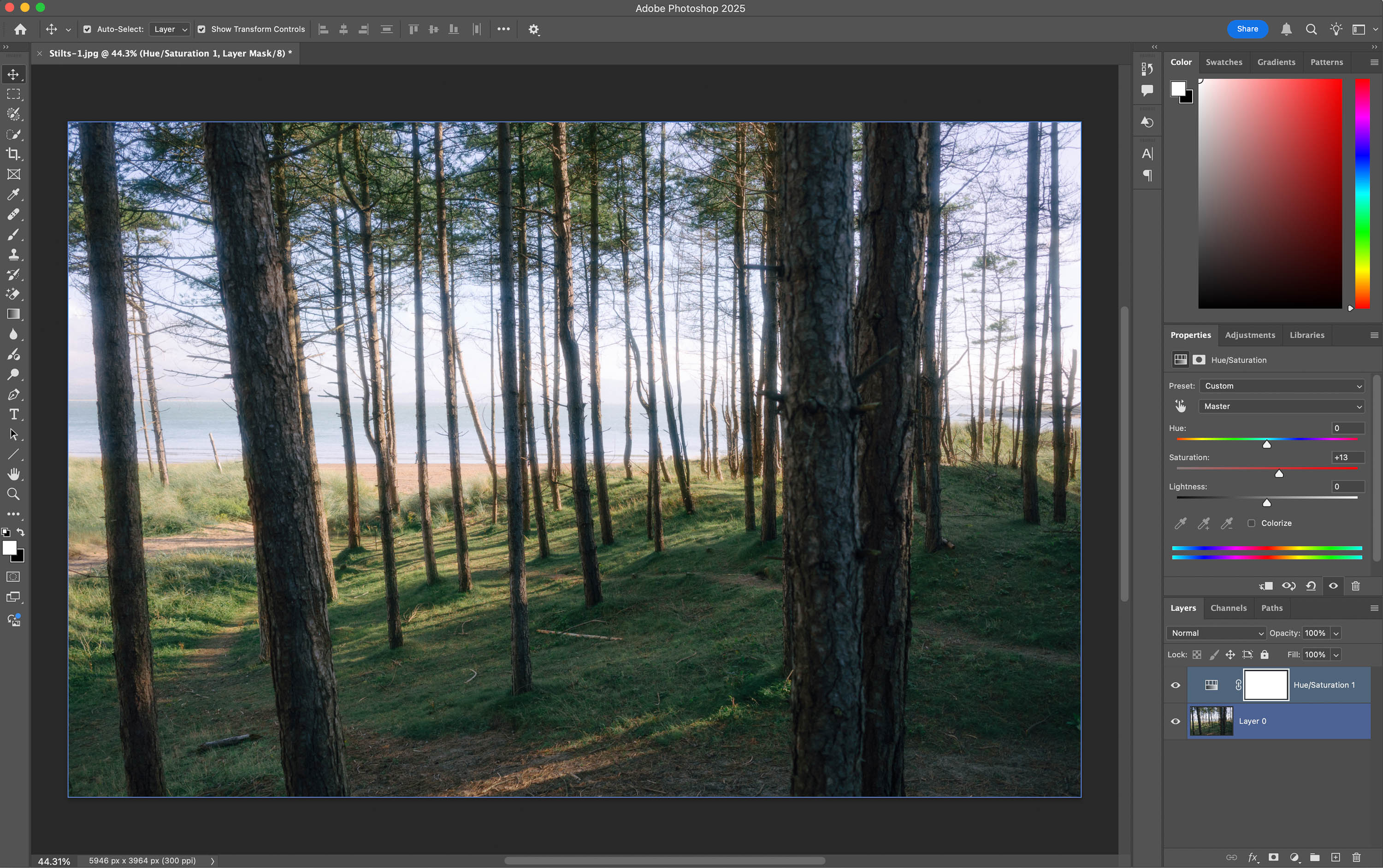
Photoshop
Pros:
It's a professional benchmark for advanced retouching, composition, masks, layers and comprehensive editing
It excels in AI tools and generative editing, such as Generative Fill, Generative Expand, Remove Tool, Harmonise and the latest Firefly models
It works really well as a complement to Lightroom or Capture One in professional workflows
It increasingly integrates AI tools and generative editing
It’s available by subscription, both as an individual app and as part of Creative Cloud plans
Cons:
It's not the most convenient programme for organising or working with many photos at once
It's not the best option for developing hundreds of RAW files from scratch
It has a steep learning curve
Its subscription model can be expensive if you only need to edit photos occasionally
Capture One
Capture One is a tool designed for professional workflows, especially for commercial, fashion and studio photography. It stands out for its ease of shooting and instantly viewing photos on your computer or tablet, also known as tethering, which is a huge advantage for studio or product sessions. As you can see, we're in a different league here.
It also stands out for its advanced colour control, which is one reason many photographers choose it over editors like Lightroom Classic. While Lightroom Classic is comprehensive for organising large libraries and batch editing, Capture One excels when you need to precisely adjust the colour of your photos, maintain consistent skin tones or work on a commercial shoot with a highly controlled look.
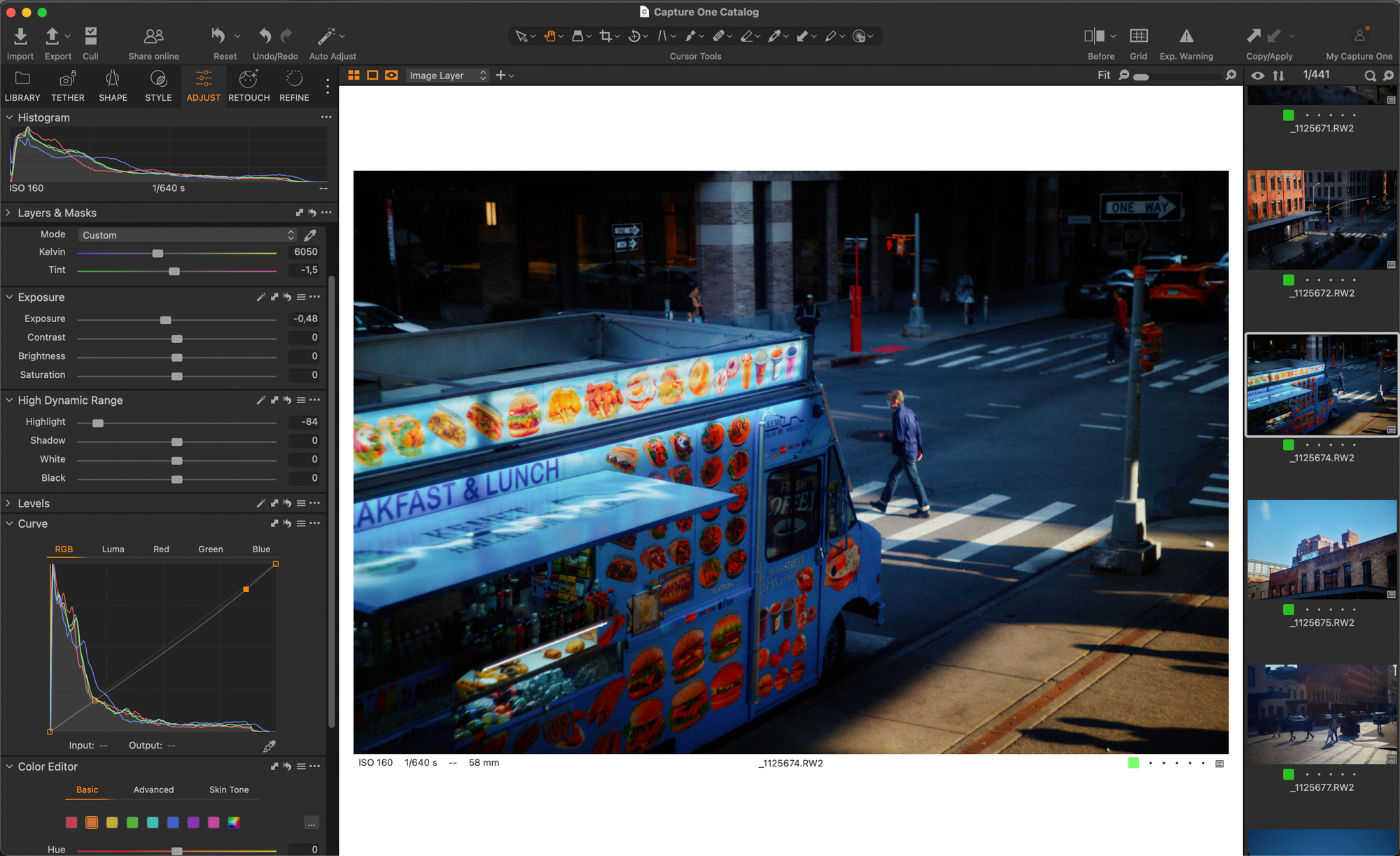
Capture One
It's not an option for beginners, but for photographers working in a studio or needing very precise colour control, it can be a very powerful tool.
Pros:
It's very strong for tethered shooting in studio, fashion, product and commercial production photography
It offers advanced colour control and a professional workflow for shoots or catalogues
It includes AI-assisted tools such as masks, automatic cropping and recent retouching-oriented features, although its strong suit remains professional control and studio workflow, not generative AI
It can be purchased via subscription and also offers a perpetual licence, depending on the version and plan available
Cons:
It comes with a high price tag
It's not the most suitable option for beginners
Its learning curve can be demanding
Its AI tools aren't the main reason to choose it over more automation-focused alternatives like Luminar Neo or Photoshop
DaVinci Resolve 21
DaVinci Resolve 21 is a different option on this list, primarily designed for hybrid creators who work with both photos and videos. While traditionally known as a video editor and a go-to tool for colour grading, Resolve 21 introduces a photo page with image editing, RAW support, albums, tethering and node-based workflow.
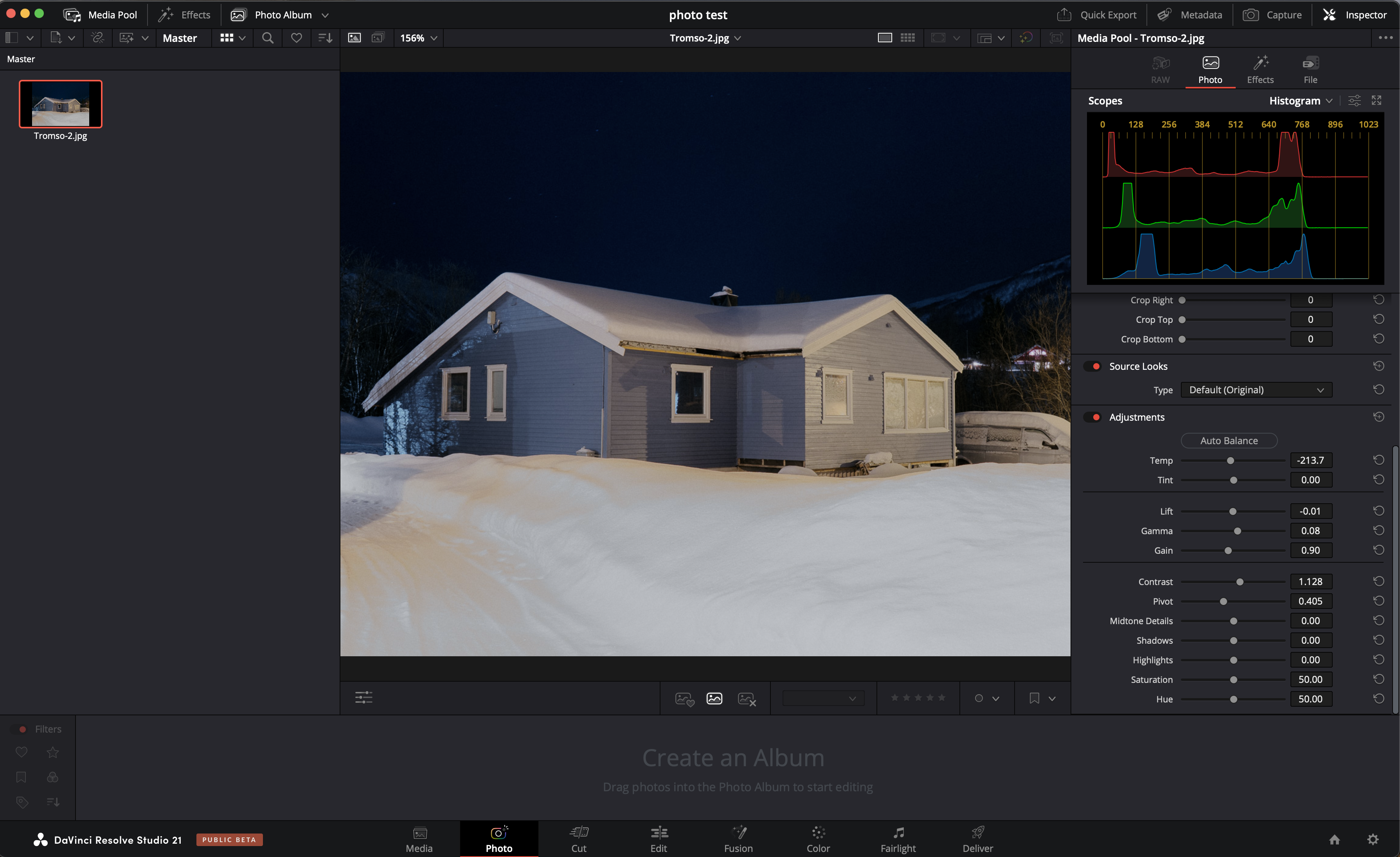
DaVinci Resolve 21
Its biggest draw is maintaining colour consistency between photos and videos. Instead of working with layers like Photoshop, DaVinci Resolve uses nodes: small, interconnected blocks where each can apply a different adjustment. This allows for complex corrections, though it's not the simplest option if you only want to process RAW files or make basic adjustments.
Pros:
It has a very powerful free version and a one-off paid Studio version
It's an interesting option for hybrid creators working with photos and videos
It allows for colour consistency between both formats
Resolve 21 introduces a photo page, RAW, albums, tethering and node-based workflow
Cons:
It remains a tool born for video and post-production
The Photo page is relatively new and not yet as established as Lightroom, Photoshop or Capture One for still photography
Node logic can be unintuitive if you're used to layer-based editors
It can be overly complex if you only want to process RAW files or make simple adjustments
Best free options
If you're looking for the best free photo editor, the key is to choose based on how you'll use it: developing RAW files, layer-based retouching or quickly preparing images for social media. GIMP, Darktable, Affinity and Canva are good options for editing without a subscription, but not all of them serve the same purpose. Some are designed for a more technical photographic workflow, others work better as Photoshop alternatives and some are more useful for quick design and social content.
GIMP
GIMP is one of the best-known free options for image editing. It's a powerful tool for manual retouching, layers, masks, selections and precise adjustments, making it a viable free alternative for those who want to edit without paying a subscription.
Its strong suit lies in manual editing and the possibilities it offers users who want to control the process. However, it's not the most beginner-friendly programme: its interface and learning curve can be less intuitive than those of other more modern tools.
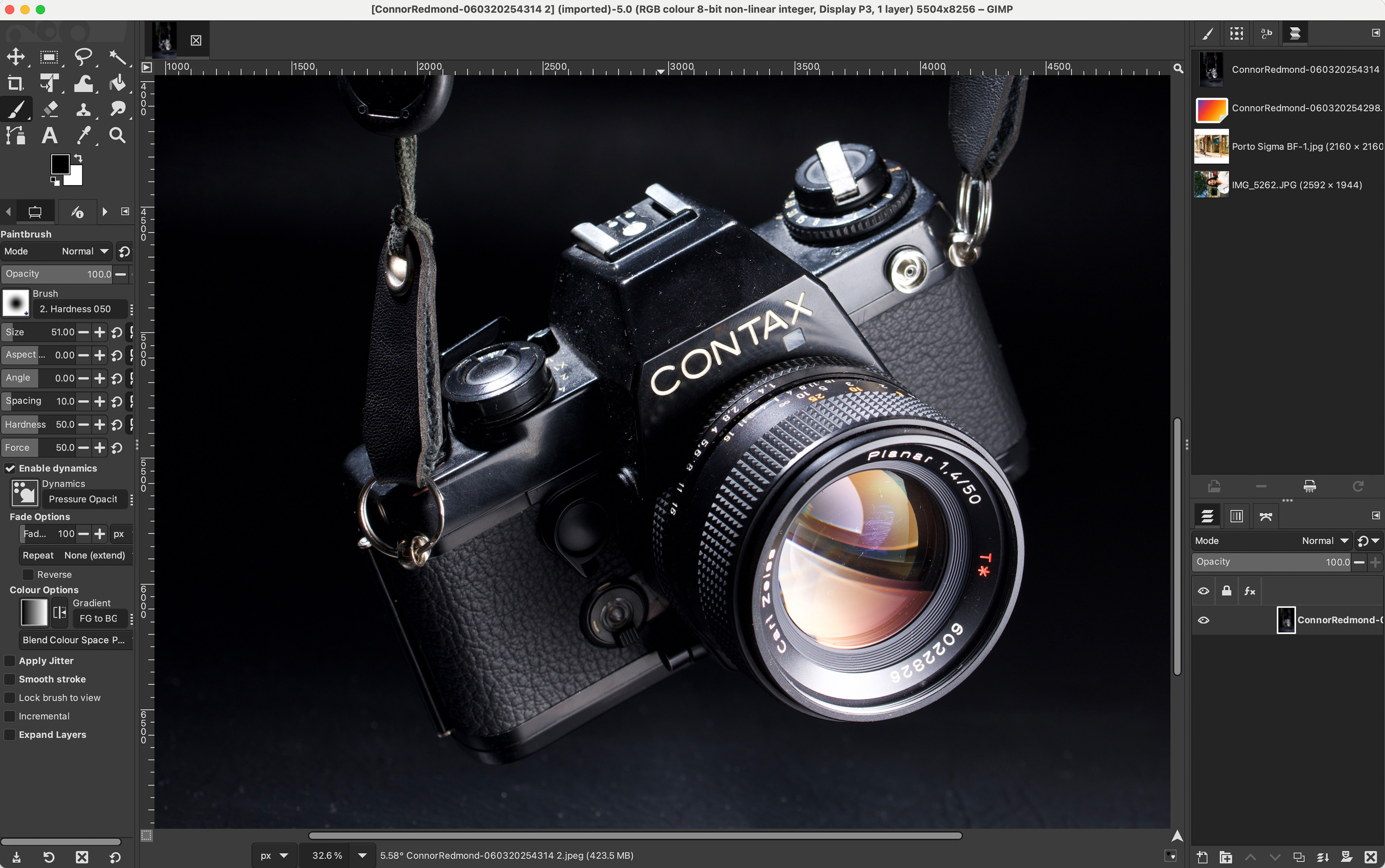
GIMP
Pros:
It's free, open-source and cross-platform
It works well for manual retouching, layers, masks, selections and compositing
It's a useful alternative if you don't want to pay for a subscription
It doesn't rely on AI tools as its main selling point: its value lies more in manual editing, flexibility, plugins and customisation. GIMP officially presents itself as a free and open-source image manipulation editor
Cons:
Its interface may be less intuitive than more modern tools
It's not the best option for managing large photo libraries
It doesn't stand out for integrated AI tools, so it may fall behind if you're looking for generative erase, image expansion or advanced automation
Darktable
Darktable is a free, open-source option for those who want to process RAW files without paying a subscription. Unlike Canva, GIMP or Affinity, it's closer to Lightroom Classic in its approach: it's not designed for photo montages or layered retouching, but rather for organising, processing and adjusting photos.
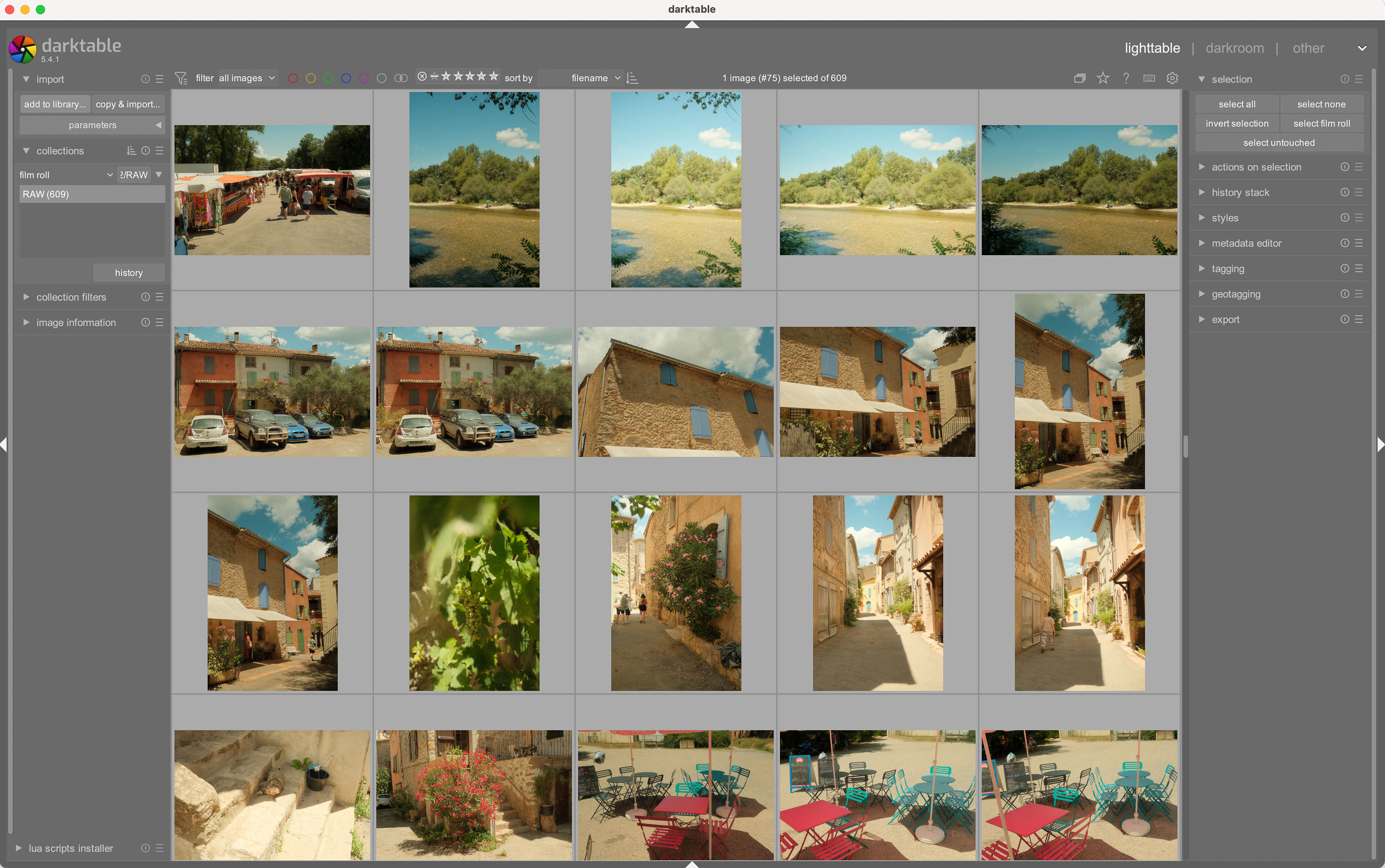
Darktable
It’s an interesting tool if you already know you want to work with RAW files and learn a more photographic editing workflow. However, it’s not the easiest option for starting from scratch. Its interface and workflow logic can feel a bit technical at first, but in return, it offers a lot of control over the image.
Pros:
It's free, open-source and specifically designed for photographic workflow and RAW development
It allows for non-destructive editing, so the original file remains unchanged
It's a good free alternative if you want something closer to Lightroom Classic than Photoshop
It has no subscription or one-off payment model: it's free under a GPL licence
Cons:
It has a steep learning curve
Its interface may be less intuitive than Lightroom Cloud or Luminar Neo
It's not the best option if you're looking for layer retouching, design or photo montage
It doesn't stand out for AI tools; its strength lies in RAW development, technical control and non-destructive workflow
Affinity
Affinity is one of the most interesting free alternatives if you're looking for a tool to work with layers, masks, selections and composition. Following its integration into Canva, it brings together photo editing, vector design and layout functions in a single free app.
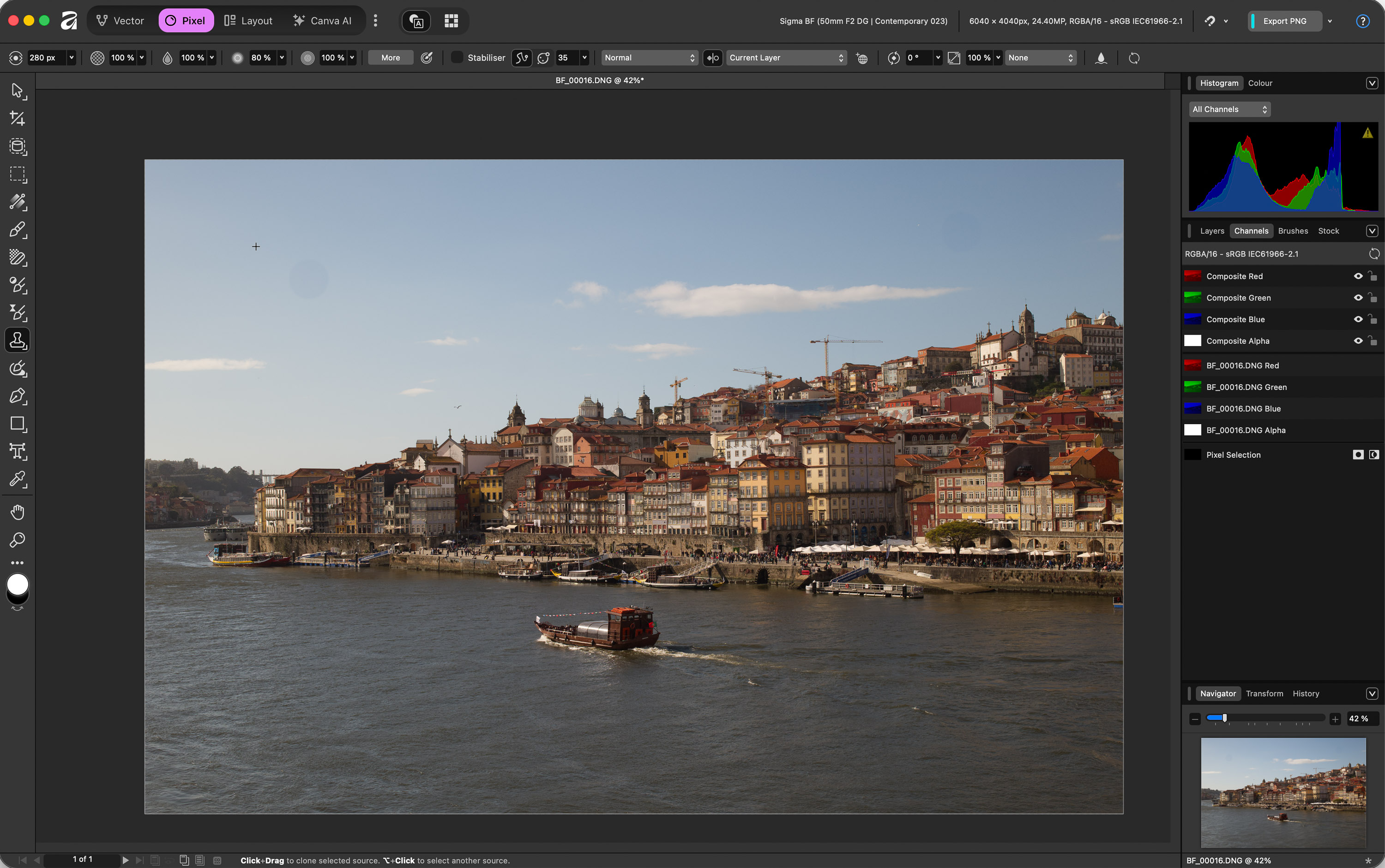
Affinity
It's a good option if you want to do manual retouching, compositions or more elaborate designs without committing to a subscription from day one. However, it doesn't replace Lightroom Classic as a photo library manager, nor does it offer such a comprehensive RAW workflow for large volumes of photos.
Pros:
It's an interesting free alternative for working with layers, masks, selections, composition, vector design and layout
The new Affinity brings together tools previously separated into Photo, Designer and Publisher into a single app
No subscription is required for its main features. Canva has relaunched it as a free app
Canva's AI tools can be integrated into Affinity, but require Canva Premium/Pro
Cons:
It doesn't replace Lightroom Classic as a photo library manager
It's not the best option for developing and organising large volumes of RAW files
AI features are not part of the free core; they require a Canva Premium plan
This could cause confusion for users who knew Affinity Photo, Affinity Designer and Affinity Publisher as separate apps
Final comparison: which photo editor to choose
Finally, here’s a comparison of all the programmes we’ve looked at. The idea isn’t to pick the ‘most comprehensive’ editor, but rather the one that best suits your skill level, budget and the type of editing you want to do: RAW, layers, masks, AI, library, batch editing or quick social media content.
Programme | Payment model | Recommended level | Key aspects |
|---|---|---|---|
Lightroom Cloud | Subscription | Beginner / Intermediate | Cloud-based |
Luminar Neo | One-off payment or subscription | Beginner | AI features |
Lightroom Classic | Subscription | Intermediate / Advanced | Batch editing |
DxO PhotoLab | Subscription | Advanced / Professional | Retouching |
Capture One | Subscription or perpetual licence | Professional | Studio quality |
DaVinci Resolve 21 | Free + one-off studio payment | Advanced / Hybrid | Hybrid photo-video workflow |
GIMP | Free | Intermediate / Advanced | RAW file editing |
Affinity | Free; AI with Canva Premium | Intermediate | Free Photoshop alternative |
If you're looking for a camera as well as software to make your interest in photography a more consistent hobby, you can also check out our guide to the best cameras for beginners before deciding which editor best suits your photographic style.
Frequently Asked Questions What's the best photo editor for beginners?
Lightroom Cloud is one of the best options for beginners because it’s intuitive, works across multiple devices and allows you to learn RAW editing gradually.
What are the best alternatives to Photoshop?
Affinity and GIMP are two good alternatives to Photoshop if you want to work with layers, masks, selections and composition without relying on the Adobe ecosystem.
What's the best AI photo editor?
Luminar Neo is one of the clearest options for achieving quick AI results. Photoshop also stands out if you're looking for more advanced generative tools.
What's the best software for professional photo editing?
Photoshop is ideal for advanced retouching and compositing, Capture One excels in studio, fashion and product photography, and Lightroom Classic works brilliantly for organising and editing many photos.
Are there any professional, one-off payment editors without a subscription?
Yes. DxO PhotoLab offers a one-off licence fee per version, and DaVinci Resolve Studio also works with a one-off payment, although significant updates may incur separate costs.
Which photo editing software is free and high-quality?
GIMP, Darktable, Affinity and Canva are good free options: GIMP for manual retouching, Darktable for RAW, Affinity for layers and composition, and Canva for quick edits.
Read more tips and techniques at the MPB content hub.
You can sell or trade your camera kit to MPB. Get a free instant quote, free insured shipping to MPB, and get paid within days.